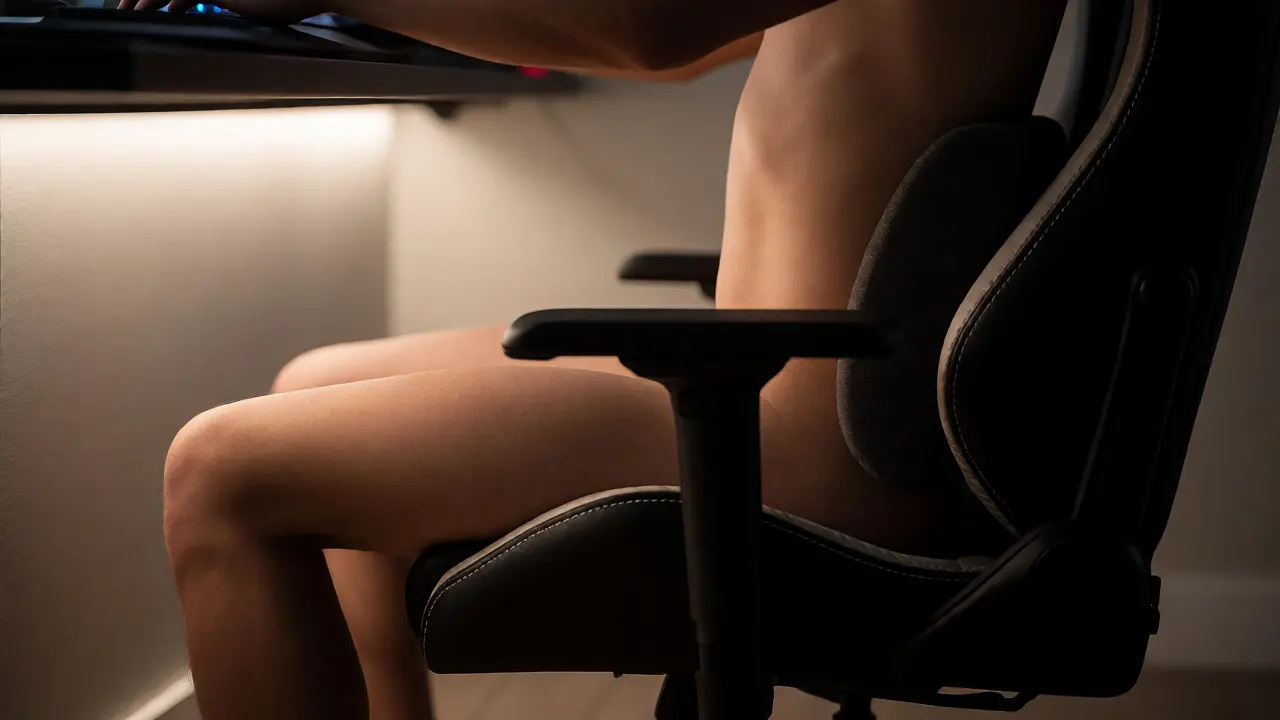
You know that feeling. It’s 2 AM, you’re deep in a ranked match, and suddenly your lower back screams at you to stop. Or maybe it’s that tingling sensation in your right hand that makes aiming feel sluggish. Most gamers treat their bodies like disposable hardware-pushing them until they break, then wondering why performance drops. But here’s the truth: your body is part of your rig. If your ergonomic setup is trash, your gameplay suffers. You don’t need a $5,000 custom battle station to fix this. You just need to understand how your body interacts with your gear.
This isn't about buying the most expensive chair on Amazon. It's about alignment. When your spine is neutral, your muscles relax. When your muscles relax, your reaction times improve. Let’s break down exactly how to build a setup that keeps you playing longer without paying the physical tax.
The Foundation: Your Chair and Spine Alignment
Let’s get one thing straight: "gaming chairs" are often marketing traps. Many of those bucket-style seats look cool but offer terrible support for long sessions because they encourage slouching. The real hero here is an ergonomic office chair with adjustable lumbar support. Why? Because your pelvis dictates your spine’s position. If your pelvis tilts backward, your lower back rounds out (lordosis), straining your discs.
Lumbar support is a cushion or mechanism that maintains the natural inward curve of the lower spine. Without it, gravity pulls you into a C-shape, compressing your nerves. To fix this, adjust your seat depth first. You should have two to three fingers' width between the edge of the seat and the back of your knees. This ensures blood flow isn't cut off behind your thighs. Next, set the lumbar height so it fits snugly into the small of your back. If your chair doesn't have this feature, buy a cheap memory foam pillow. It works wonders.
Don't forget your feet. They shouldn't dangle. If your legs hang, your thighs press against the seat edge, restricting circulation. Use a footrest if necessary. Keeping your feet flat on the floor or a stable surface grounds your posture and reduces strain on your lower back.
Monitor Height and Eye Strain
Your neck is a fragile column of vertebrae, not a crane arm. Yet, most gamers hunch forward, staring down at screens mounted too low. This creates "tech neck," where every inch your head moves forward adds roughly ten pounds of pressure to your cervical spine. After eight hours, that’s a massive load.
Monitor positioning follows a simple rule: the top of your screen should be at or slightly below eye level. This angle allows your eyelids to cover more of your eyes, reducing dryness and fatigue. Distance matters too. Sit about an arm's length away from your monitor. For larger ultrawide displays, you might need to sit closer, but ensure you can see the edges without turning your head excessively. Constant head rotation strains the trapezius muscles-the big ones running from your neck to your shoulders.
If you use multiple monitors, center the primary one directly in front of you. Secondary screens should be angled inward toward your dominant side. This minimizes the twisting motion required to check chat or inventory, keeping your torso relatively square.
Wrist Health and Peripheral Placement
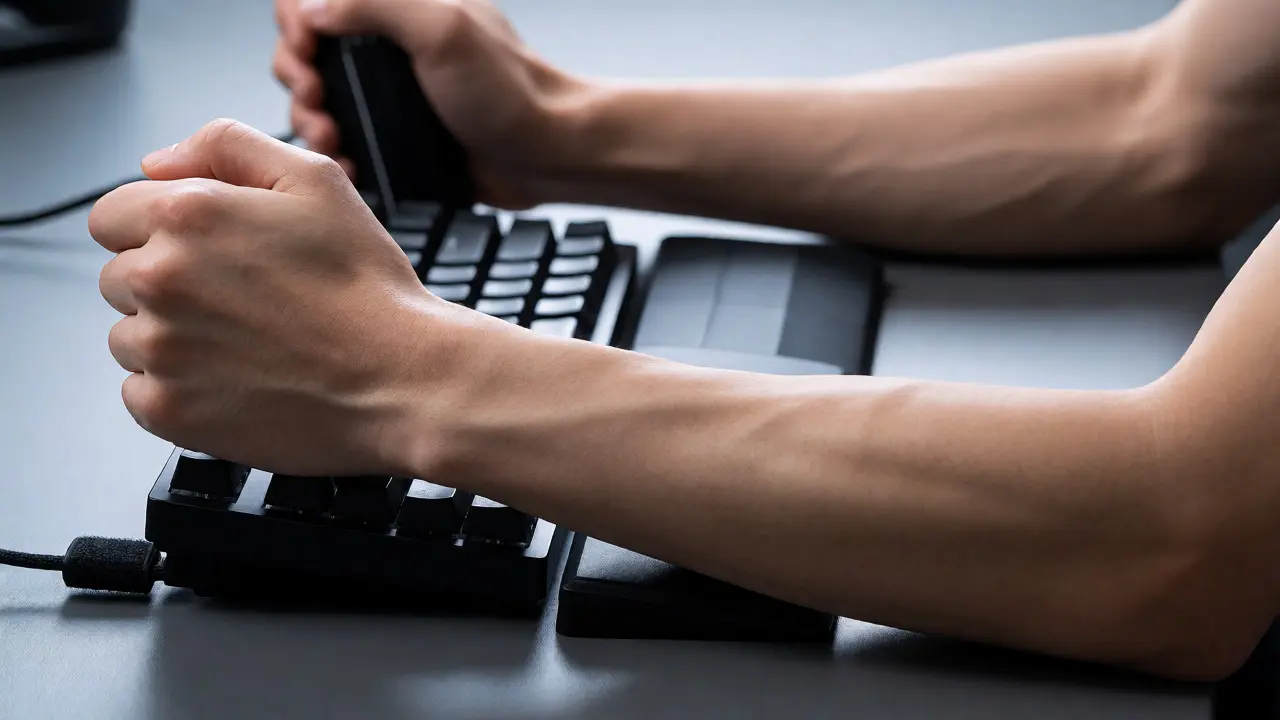
Carpal tunnel syndrome is the gamer’s nemesis. It happens when the median nerve gets compressed in your wrist due to repetitive stress and poor angles. The culprit? Hyperextension or deviation of the wrist while using a mouse or keyboard.
Neutral wrist position means your hands float parallel to the floor, not bent up or down. Your elbows should rest at a 90-degree angle, close to your body. If your desk is too high, you shrug your shoulders, tightening your traps. If it’s too low, you lean forward. Adjust your desk height or use a keyboard tray. A mechanical keyboard with a detachable palm rest can help keep wrists straight during typing bursts.
For mouse users, consider the shape of your grip. Claw grips put immense pressure on the fingertips and wrist tendons. Palm grips distribute weight better across the forearm. Regardless of style, avoid resting your wrist on hard edges. Use a gel pad only when pausing, not while moving the mouse. Moving over a soft pad creates friction that tires your muscles faster than a smooth cloth surface.
Lighting and Visual Fatigue
Dark rooms with bright screens create harsh contrast, forcing your pupils to dilate and conflate rapidly. This leads to headaches and blurred vision. Ambient lighting is crucial. Place a bias light strip behind your monitor to wash the wall with soft glow. This reduces the contrast ratio between the screen and the surrounding area.
Try the 20-20-20 rule: every 20 minutes, look at something 20 feet away for 20 seconds. It sounds cliché, but it resets your ciliary muscles, which control lens focus. Blue light glasses are popular, but evidence suggests they do less than proper lighting and breaks. Prioritize screen brightness adjustment to match your room’s ambient light levels instead.
Movement Beats Static Ergonomics
Here is the dirty secret of ergonomics: the best posture is the next one. No static position is healthy indefinitely. Even the perfect ergonomic setup becomes harmful if you stay frozen for four hours. Blood pools in your legs, joints stiffen, and metabolism slows.
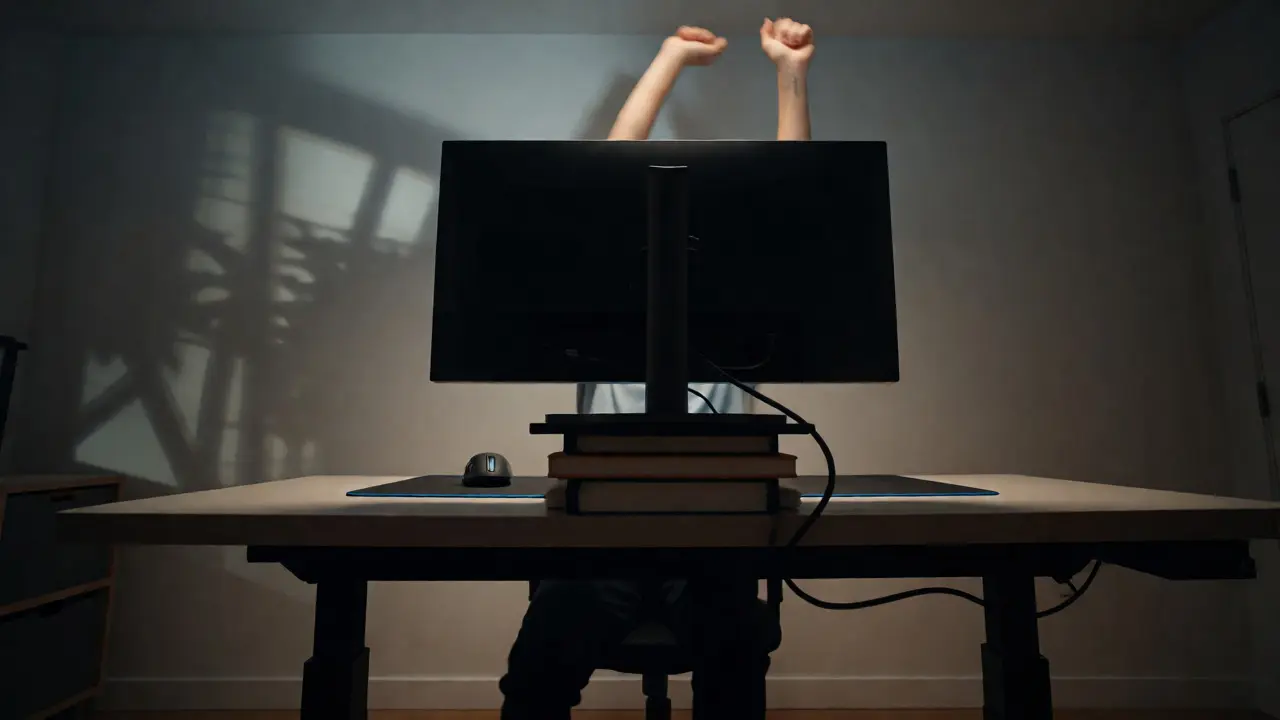
Integrate micro-movements. Stand up during loading screens. Do shoulder rolls between matches. Stretch your hip flexors, which tighten significantly from sitting. Consider a standing desk converter if you want variety, but don’t stand all day either. Alternating between sitting and standing every 30-60 minutes keeps circulation flowing and mental focus sharp.
| Body Part | Ideal Position | Common Mistake |
|---|---|---|
| Eyes | Top of monitor at eye level; 20-30 inches away | Looking down at laptop screen |
| Neck | Straight, aligned with spine | Turtling forward (head ahead of shoulders) |
| Shoulders | Relaxed, not raised | Shrugging due to high desk |
| Elbows | 90-degree angle, close to body | Arms extended far forward |
| Wrists | Straight, floating above desk | Bent upward on keyboard rim |
| Hips | Knees at same level or slightly lower than hips | Knees higher than hips (slouching) |
Budget-Friendly Upgrades That Matter
You don’t need to spend thousands. Start with the highest impact changes. First, fix your chair. If yours lacks lumbar support, a $15 lumbar pillow beats a new chair. Second, raise your monitor. Stack books under it or buy a $20 monitor riser. Third, add a footrest. A box works fine initially.
Next, look at your peripherals. A vertical mouse shifts your forearm to a handshake position, reducing pronation stress on the radius and ulna bones. Split keyboards allow your shoulders to open up rather than cross over your chest. These tools change biomechanics, not just aesthetics.
Finally, manage cable clutter. Messy cables pull on your mouse or restrict movement, causing subconscious tension. Use velcro ties or cable sleeves to route wires cleanly. This small detail removes invisible resistance from your movements.
Do gaming chairs actually help with back pain?
Not necessarily. Most racing-style gaming chairs prioritize aesthetics over spinal support. They often lack adequate lumbar adjustment and encourage slouching. An ergonomic office chair with adjustable lumbar support and seat depth is usually superior for health and comfort during long sessions.
How high should my monitor be?
The top edge of your monitor should be at or slightly below eye level. This prevents you from tilting your head up or down, which reduces strain on your cervical spine and helps prevent dry eyes by allowing your eyelids to cover more of your cornea.
Is a vertical mouse worth it for gamers?
For many, yes. Vertical mice promote a neutral "handshake" wrist position, reducing muscle tension in the forearm. However, precision may suffer initially as you adapt. It is excellent for casual play or strategy games but might require practice for fast-paced FPS titles.
Can I fix carpal tunnel with ergonomic gear alone?
Gear helps prevent worsening, but it rarely cures established carpal tunnel syndrome. Rest, stretching, and medical intervention are often needed. Ergonomic setups reduce the risk factors-like wrist extension and repetition-but consult a doctor if you experience persistent numbness or weakness.
How often should I take breaks?
Follow the 20-20-20 rule for eyes and aim to stand or move every 45-60 minutes. Prolonged static sitting restricts blood flow and stiffens joints. Micro-breaks, even just stretching your arms overhead, reset your posture and maintain circulation.